
A counter is the running number inside a reference number, such as the "0042" at the end of a purchase request number. Buyer Admins can see each counter and set the number it will use next on the Counter Management page.
View your counters
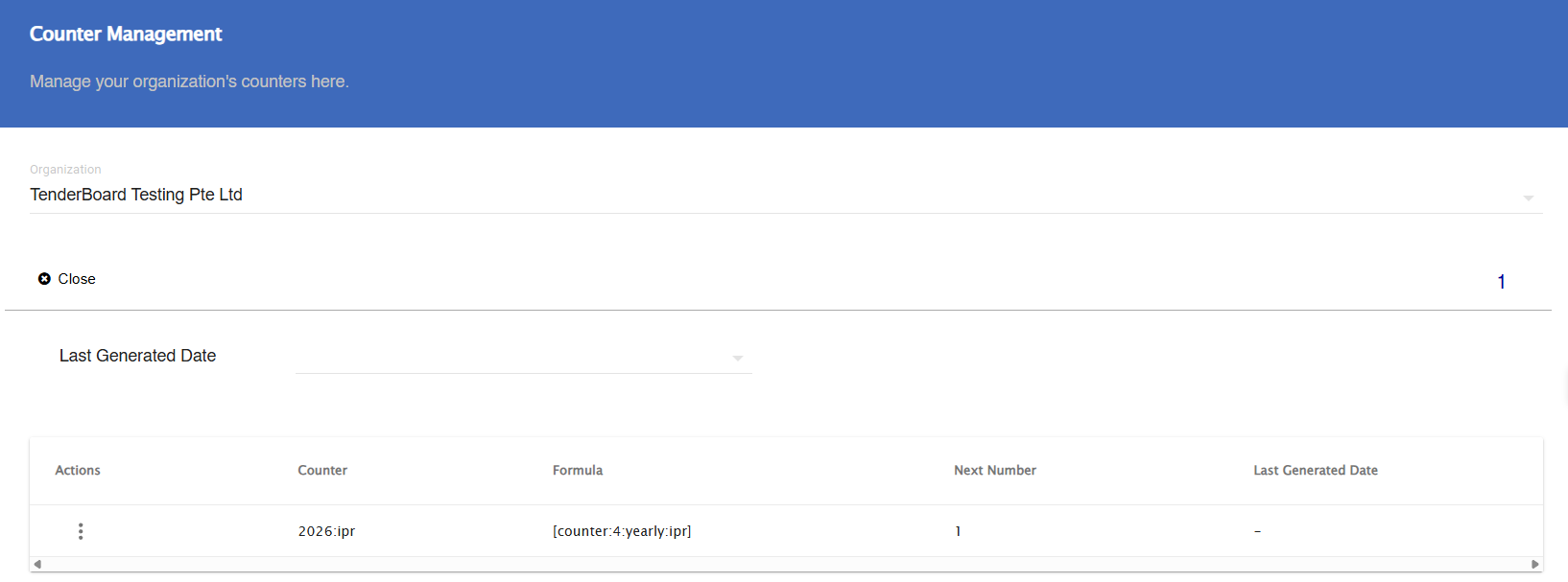
- Go to Management > Counter Management.
- The list shows one row per counter:
- Counter: the name of the counter, taken from the counter formula in Form Designer
- Formula: the counter formula from the Form Designer. Shown only for counters that have not generated a number yet. Counters already in use show "-".
- Next Number: the number the counter will use next
- Last Generated Date: when the counter last generated a number
Counters that have not generated a number yet are at the top of the list. These come from the compound fields set up in your Form Designer.
To narrow the list, filter by Last Generated Date. Counters that have not generated a number yet are hidden while this filter is on.
Change the next number
- Find the counter in the list.
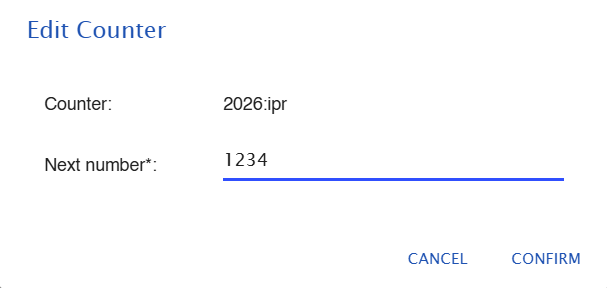
- Open the menu under Actions and select Edit. The Edit Counter dialog opens.
- Enter the Next number. It must be a whole number, 1 or above.
- Click Confirm.
The next reference number generated for that counter uses the number you entered, and the numbers after it continue from there.
Before you change a counter
TenderBoard does not check the number you enter against numbers already used. If you set the next number lower than a number that has already been issued, new records can get a reference number that already exists. Check the last number issued before you lower a counter.
Changing a counter does not change the reference numbers of existing records.
If you require further assistance, reach out to us at support@TenderBoard.biz